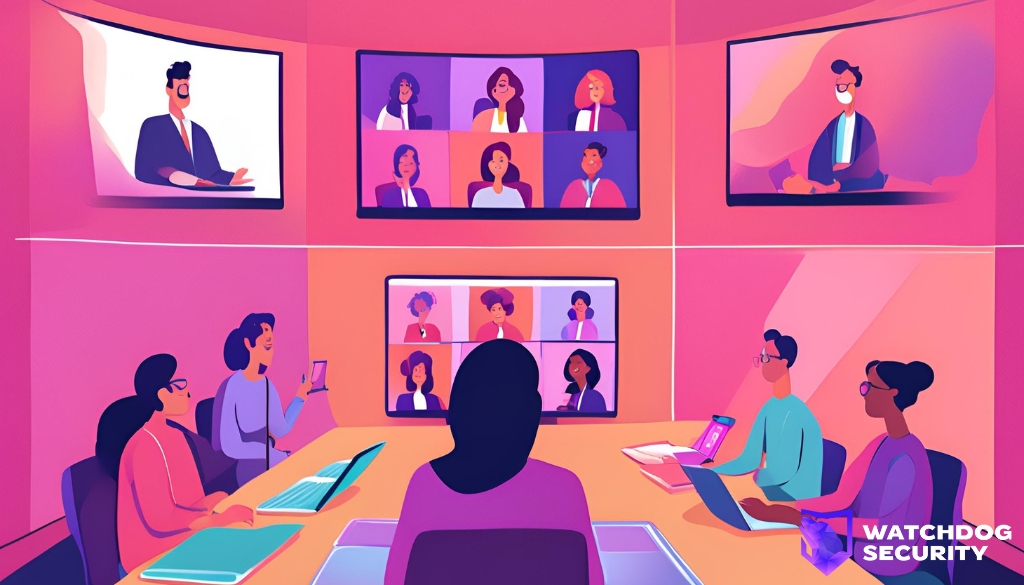
Many businesses use Zoom for virtual meetings with internal and external parties, but it comes with its fair share of risks. The shared responsibility model that exists with Zoom and its customers is that the customers are responsible for Zoom meeting security. Although not as common now, “Zoom bombing” was a significant issue during the COVID-19 pandemic and continues to affect businesses today. Whether it’s malicious users trying to infiltrate Zoom meetings to obtain Intellectual Property (IP) or simply trolls looking to cause disruption, this blog will provide you with the knowledge to secure your Zoom Meetings and Account. Additionally, it will introduce a free tool that can automate the detection of misconfigurations for Zoom and over 100 other SaaS apps.
1. Enable Multi-Factor Authentication (MFA)
MFA is an overlooked setting but can stop most attacks that would target your credentials. It works by providing an additional layer of protection beyond just a password. By enabling MFA on your Zoom account, you ensure that even if someone gains access to your password, they still cannot access it without the second authentication factor. Use app-based MFA instead of SMS to avoid vulnerabilities like SIM swapping where attackers can social engineer your service provider (or have a malicious insider) issue a new SIM card associated to your number – allowing them to bypass SMS MFA entirely. This is even more so true for businesses working with sensitive IP or data.
Managing two-factor authentication (2FA) (Zoom Support)
2. Enforce Password Complexity for Zoom Meetings
Enforce password complexity to prevent unauthorized access to your meetings. Strong, complex passwords make it harder for attackers to guess meeting passwords, increasing the chances that only authorized participants will join. You can configure your personal Zoom account or enforce it for your company users.
Managing Zoom Meetings passcodes (Zoom Support)
3. Enable Weak Password Detection
Weak password detection is a crucial feature that alerts you when a password doesn’t meet the necessary security standards. Enabling this feature allows you to proactively strengthen your security by ensuring that all passwords used in your Zoom meetings are robust.
Changing account security settings (Zoom Support)
4. Require Passcode for Instant Meetings
Instant meetings allow Zoom users to create and share a Zoom meeting with external recipients instantly. Ensuring that a Meeting Passcode protects all generated meetings is crucial to prevent unauthorized users from joining the Zoom meeting.
Managing Zoom Meetings passcodes (Zoom Support)
5. Disable File Transfer in Meeting Chat
Turn off the file transfer feature in the meeting chat to prevent the sharing of potentially malicious files during meetings. This simple setting can help avoid the spread of malware or unapproved content among participants, especially in cases where a malicious user may be on a Zoom call attempting to get Social Engineer users to do so.
Managing file transfers in Zoom Team Chat (Zoom Support)
6. Disable Remote Control During Meetings
Remote control during meetings can be a security risk if a user is inadvertently tricked or social engineered to grant access to perform malicious actions on your workstation. It’s important to disable this to prevent unauthorized remote control actions.
Requesting or giving remote control (Zoom Support)
7. Require Strong Passcodes for Cloud Recordings
Zoom’s cloud recording feature allows users to save meetings to an organization’s specific cloud storage. While convenient, it’s important to ensure that recordings are protected by strong passcodes so that only authorized individuals can access these recordings.
Managing and sharing cloud recordings (Zoom Support)
8. Disable Remote Support During Meetings
Remote support allows participants to control each other’s screens, which can be risky in a meeting setting. Disabling remote support during meetings prevents unauthorized access and ensures that only the intended actions are carried out during your users’ Zoom sessions.
- Enabling/Disabling Remote Support (Zoom Support)
Enabling/Disabling Remote Support (Zoom Support)
Total visibility. Zero blind spots. WatchDog helps you monitor every user, service account, and system across Cloud, SaaS, and devices -flagging misconfigurations and risks the moment they arise.
- ➕ Asset management – Add and track your own assets easily across Cloud, SaaS + On-Prem
- Identity monitoring – Limited to Google Workspace & M365 Non-Human Identities on free plan
- 🔧 SaaS + Cloud hardening checks – Spot misconfigurations before they become risks
Get started free today – no credit card required.
1. Are Zoom Meetings Secure?
By default, no, they are not. While this blog post offers great guidelines to get started, using WatchDog Security’s free SaaS Security Posture Management (SSPM) will allow you to audit your Zoom (plus 100s of other SaaS apps) for no cost!
2. Is Google Meet more secure than Zoom?
Google Meets has less functionality than Zoom, making security a lot easier for IT teams or administrators to manage. Both applications are secure if used correctly, and insecure default configurations are changed.